Step-by-step guide

How to use Dukalink

Follow these steps to run your whole shop with Dukalink, from your first product to your daily reports. Each step shows a real screen from the platform so you know exactly what to expect.

1

Create your shop account

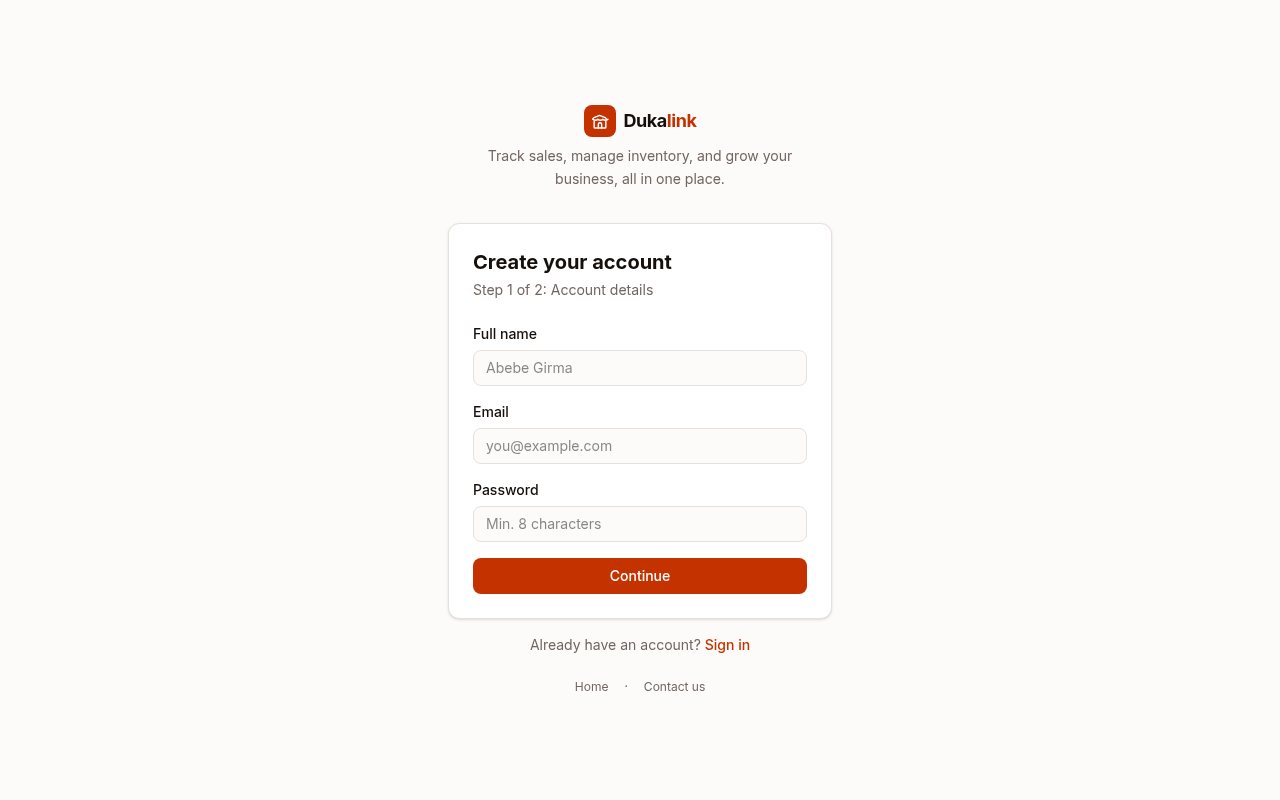
Start by creating a free account. Enter your full name, email, and a password, then add your shop name and location. This becomes your own private workspace, no one else can see your data.

  • Step 1: your personal login details (name, email, password)
  • Step 2: your shop details so receipts show the right name and address
  • Sign in from any phone or computer, your data stays in sync
dukalink.app/register
Screenshot of the create your shop account screen in Dukalink
2

Add your products

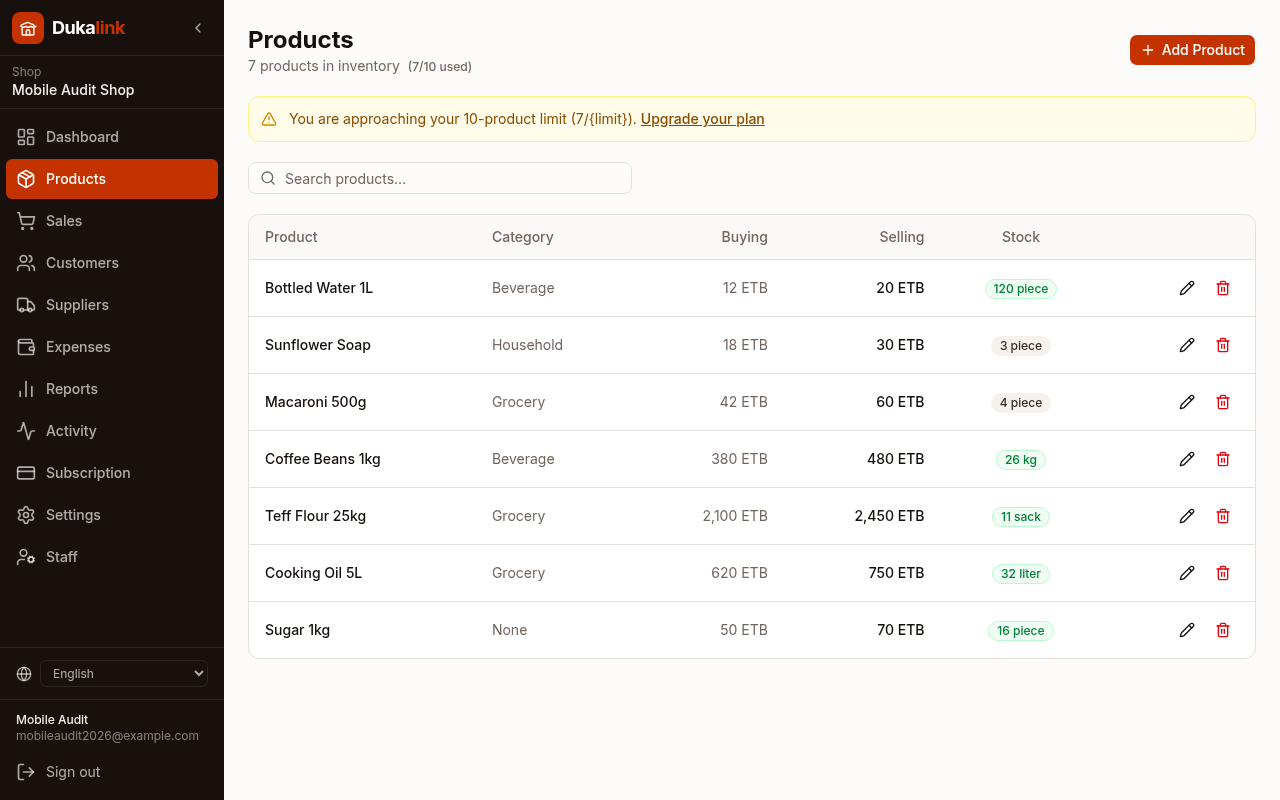
Add everything you sell. For each product you record the buying price, selling price, and how much stock you have. Dukalink then tracks your stock automatically as you make sales.

  • Tap Add Product and fill in name, category, prices, and quantity
  • Stock badges turn yellow when an item is running low
  • The buying price lets Dukalink calculate your real profit on every sale
dukalink.app/dashboard/products
Screenshot of the add your products screen in Dukalink
3

Record a sale

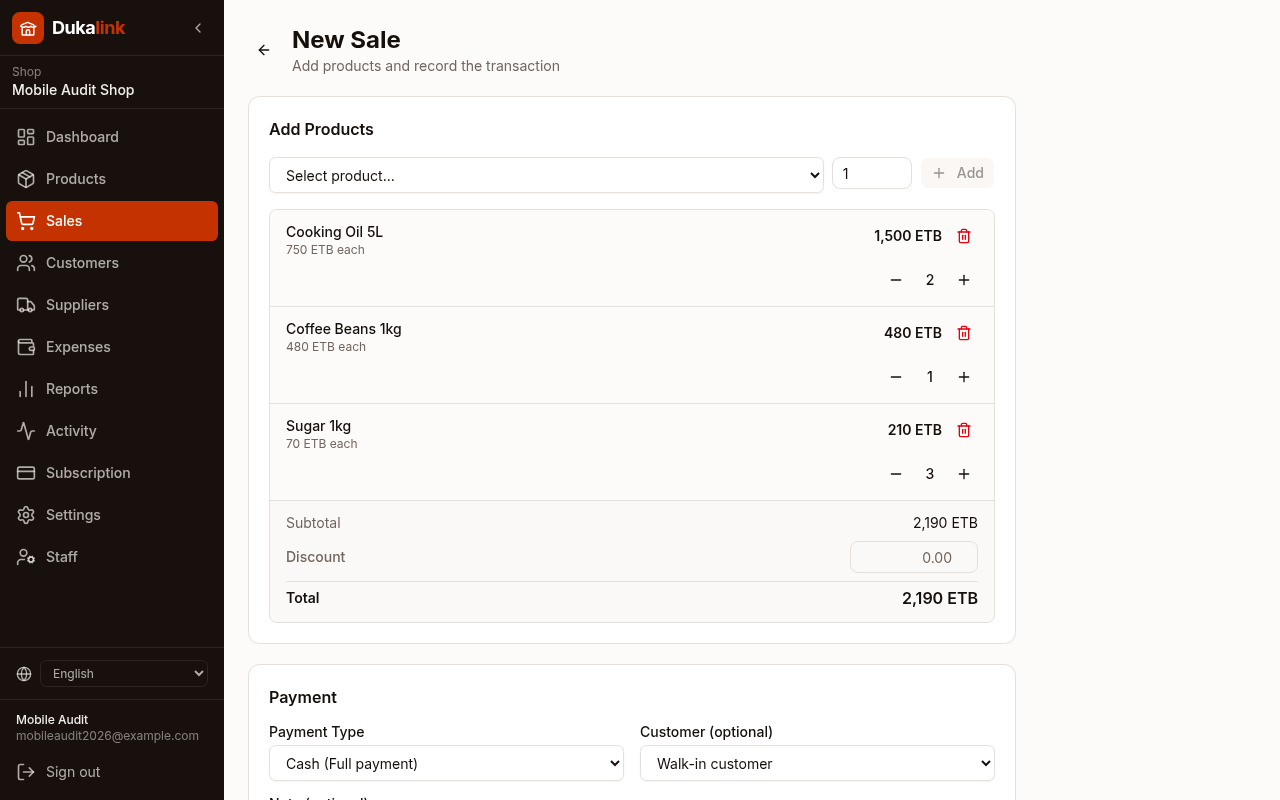
When a customer buys something, open New Sale, pick the products, and set the quantity. Choose how they paid, cash, credit, or partial, and optionally link the sale to a customer.

  • Add as many products to the basket as you need, then apply a discount if you want
  • Cash means paid in full, credit records what the customer still owes you
  • Stock is reduced automatically the moment you record the sale
dukalink.app/dashboard/sales/new
Screenshot of the record a sale screen in Dukalink
4

Print or share the receipt

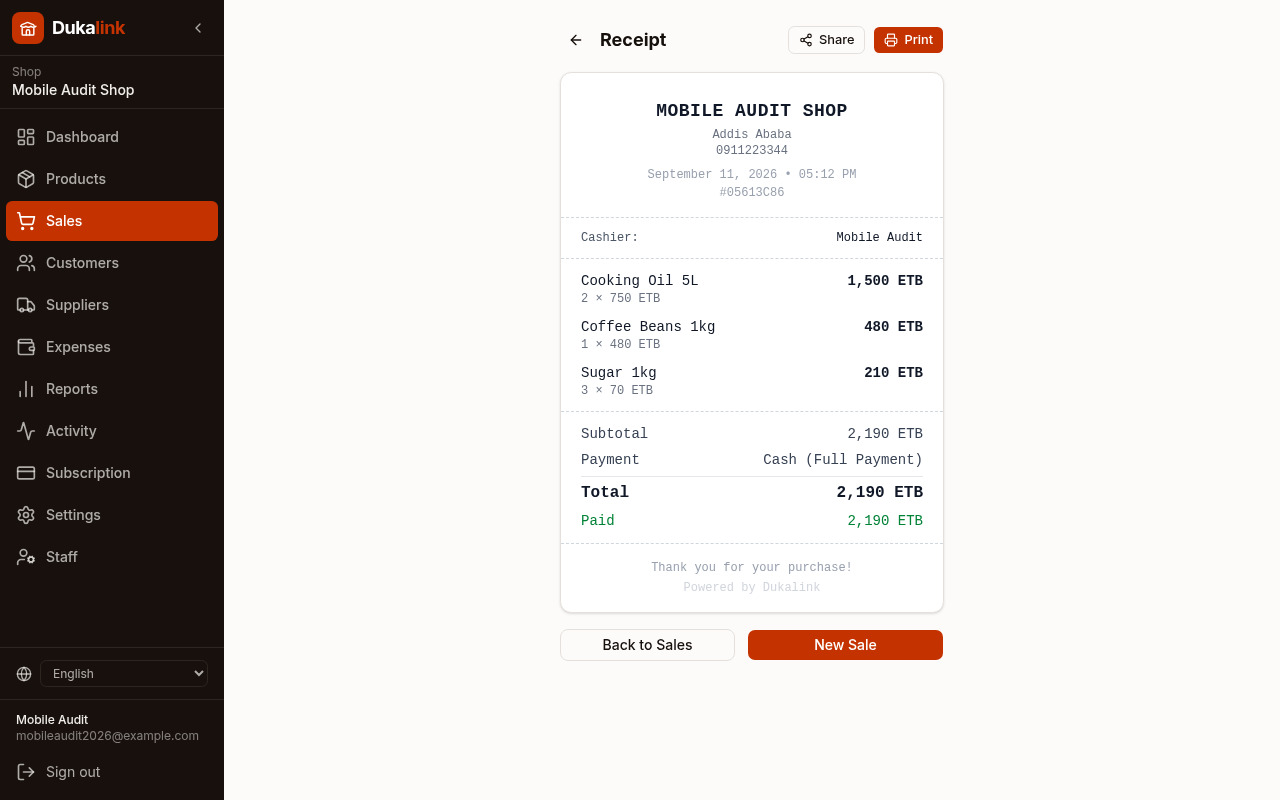
Every sale creates a clean receipt with your shop name, the items, totals, and payment status. Print it for the customer or share it directly from your phone.

  • Receipts show each item, quantity, and price clearly
  • Print to a receipt printer or share as a link or image
  • Paid, credit, and partial payments are all labelled on the receipt
dukalink.app/dashboard/sales/.../receipt
Screenshot of the print or share the receipt screen in Dukalink
5

Track every sale

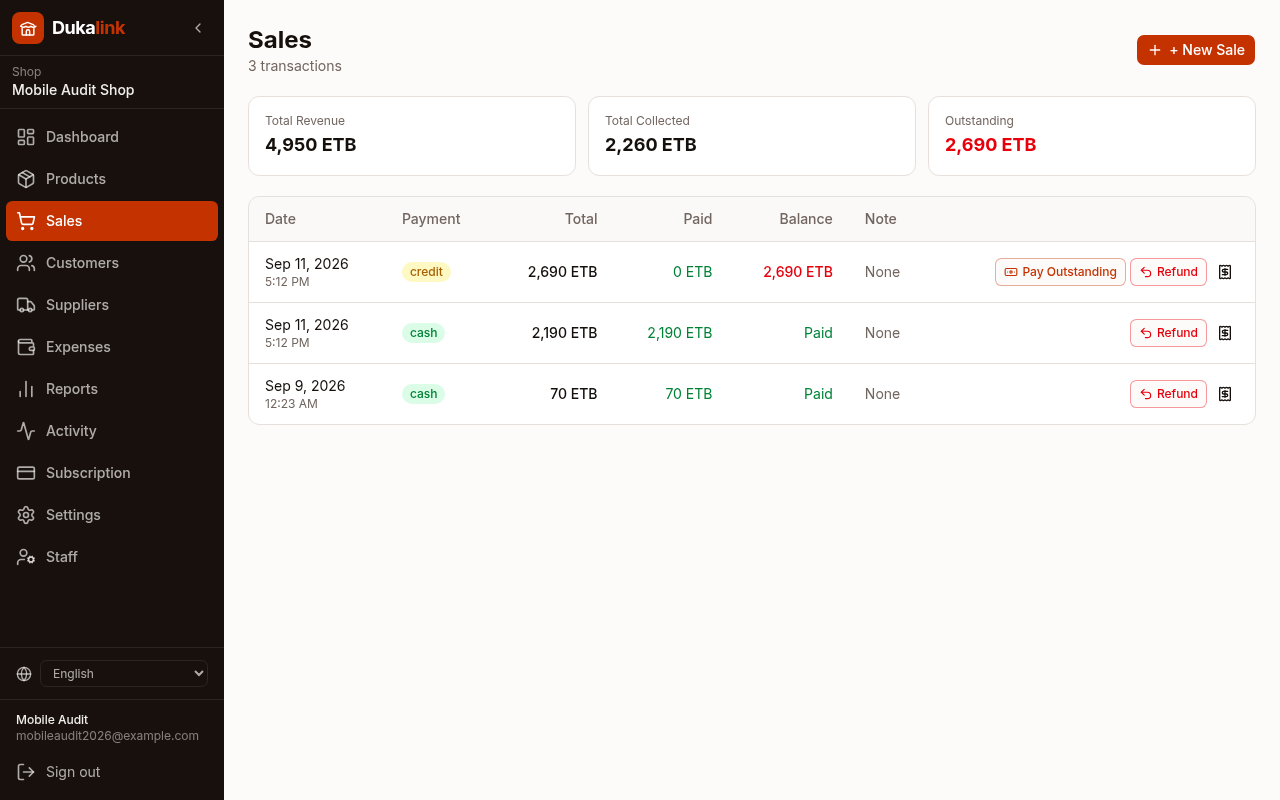
The Sales page lists every transaction with totals for revenue, money collected, and outstanding balances. You can collect an unpaid balance or record a refund right from the list.

  • See total revenue, total collected, and what is still outstanding at a glance
  • Use Pay Outstanding when a customer settles a credit sale
  • Record refunds without breaking your reports
dukalink.app/dashboard/sales
Screenshot of the track every sale screen in Dukalink
6

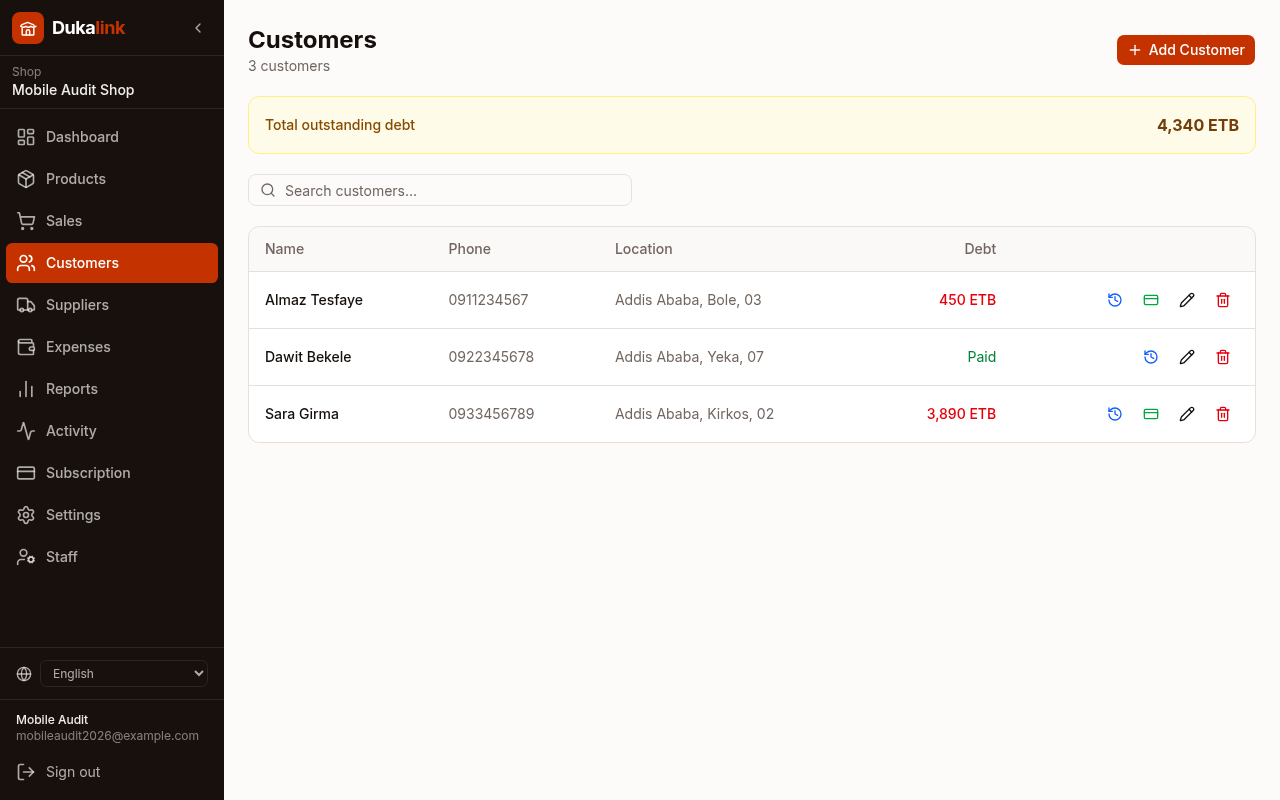
Manage customers and credit

Keep a record of your regular customers and exactly how much each one owes you. The page totals all outstanding debt so you always know how much money is out on credit.

  • Store customer name, phone, and location
  • Debt updates automatically from credit sales and payments
  • A green Paid label shows customers who are all settled up
dukalink.app/dashboard/customers
Screenshot of the manage customers and credit screen in Dukalink
7

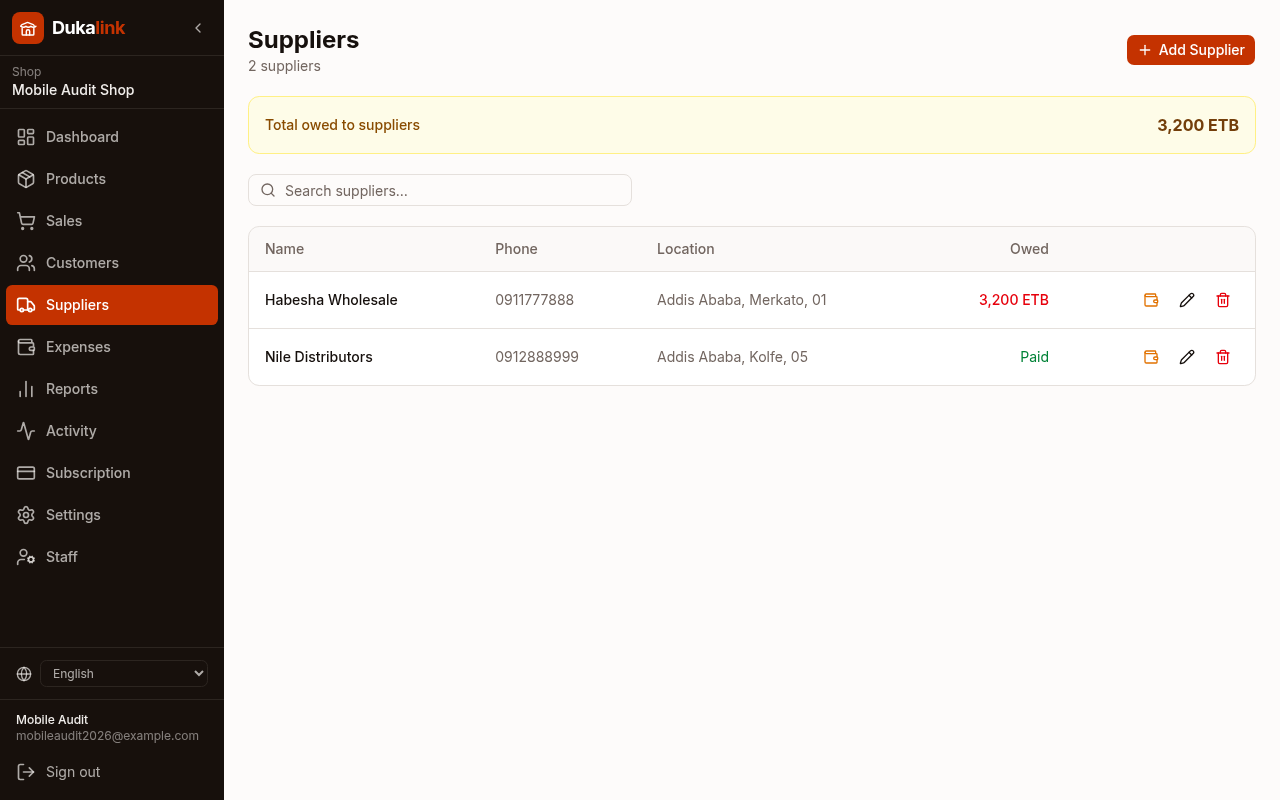
Track your suppliers

Record the wholesalers and distributors you buy from, and track how much you still owe each one. This keeps your payables organised so nothing slips through the cracks.

  • Store supplier contact and location details
  • See the total amount you owe across all suppliers
  • Mark payments so balances stay accurate
dukalink.app/dashboard/suppliers
Screenshot of the track your suppliers screen in Dukalink
8

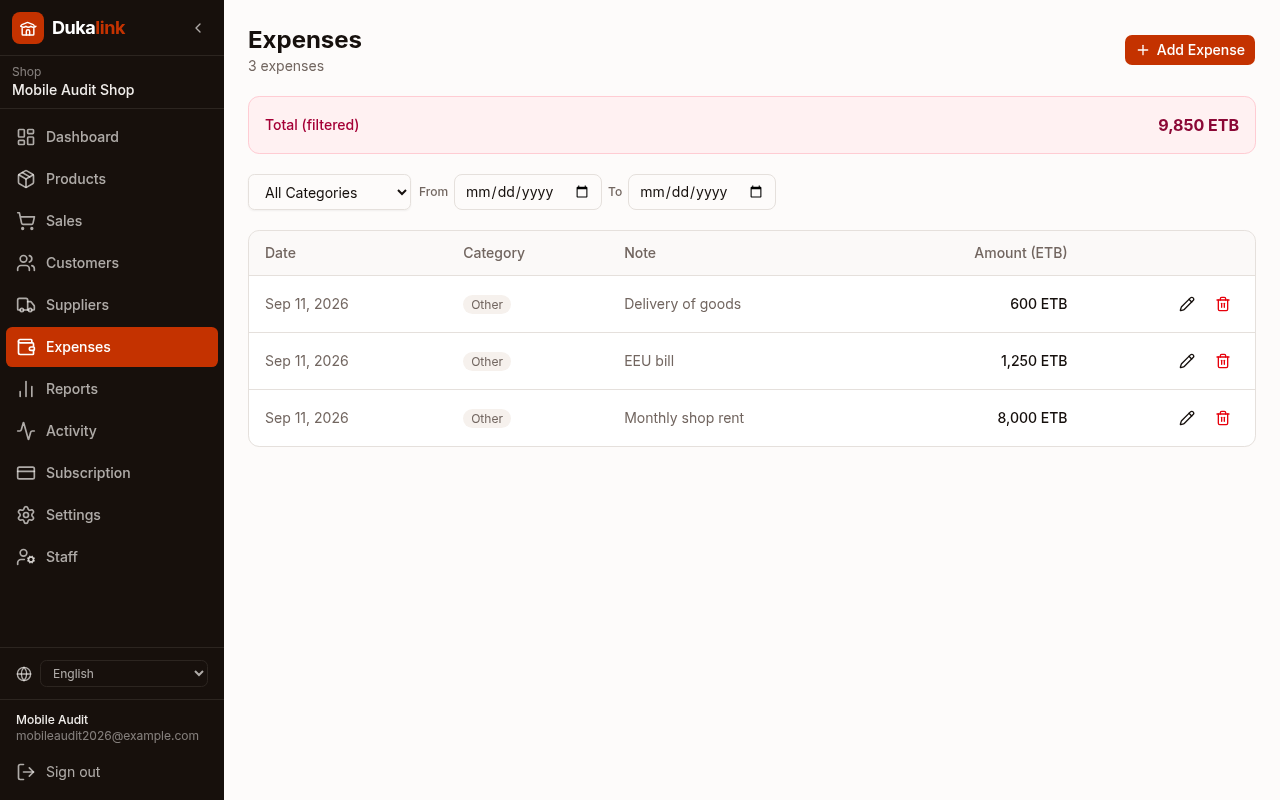
Log your expenses

Record costs like rent, electricity, and transport. When you track expenses, Dukalink can show your true profit, what is left after all your costs, not just your sales.

  • Add an expense with a category, amount, and note
  • Filter by category or date range to review spending
  • Expenses feed straight into your profit and cash flow reports
dukalink.app/dashboard/expenses
Screenshot of the log your expenses screen in Dukalink
9

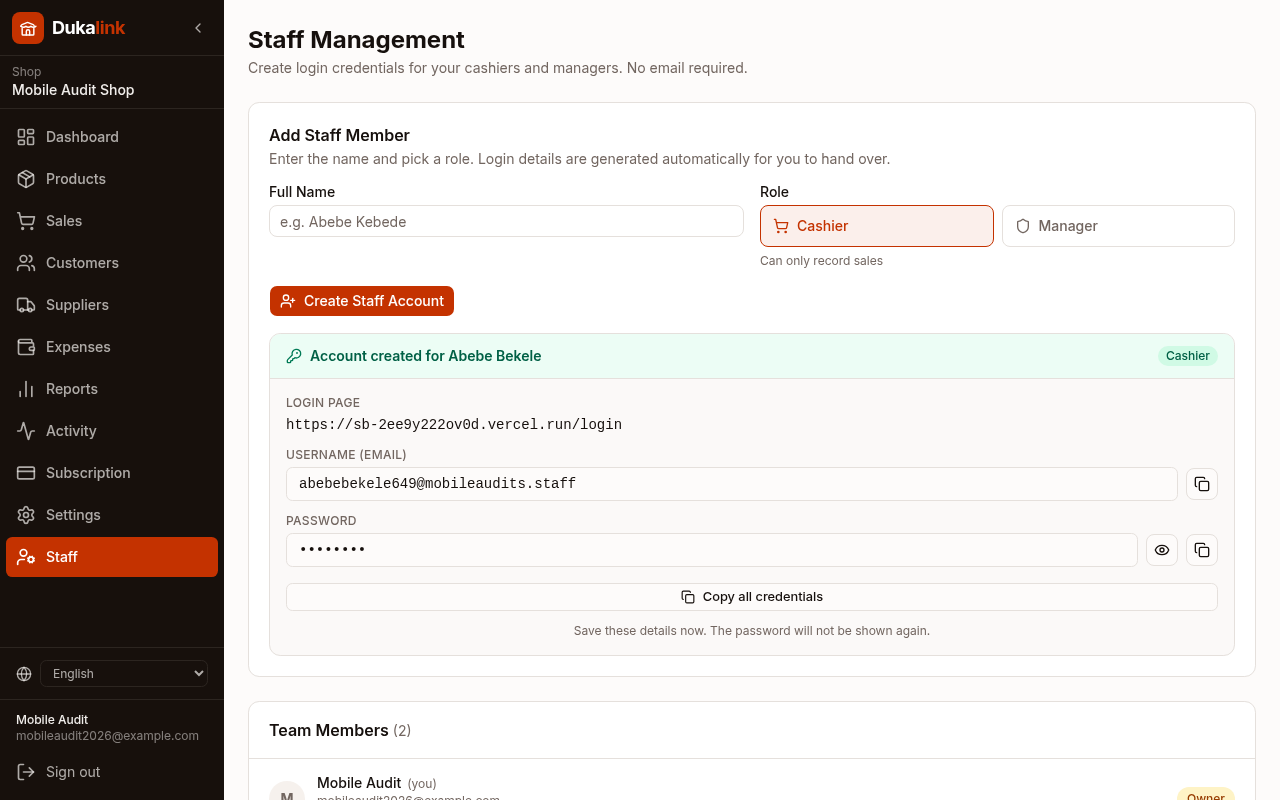
Add your team and set roles

As the owner you can give your cashiers and managers their own logins, no email address required. Enter a name, pick a role, and Dukalink generates a username and password for you to hand over. Each role only sees what it should.

  • Type a name, choose Cashier or Manager, and Dukalink creates the login automatically
  • Cashiers can record sales; managers get wider access to help run the shop
  • Copy or share the generated username and password, then change a role or remove a member any time
  • Every staff member's activity feeds the Employees report so you can see who is selling what
dukalink.app/dashboard/staff
Screenshot of the add your team and set roles screen in Dukalink
10

Read your reports

Reports turn your daily activity into insight. The page is split into four tabs, and every tab lets you choose a period like Today, This Week, This Month, or a custom range. Here is what each tab shows.

  • Four tabs: Revenue, Profit Analytics, Cash Flow, and Employees
  • Pick any date range and every chart and total updates instantly
  • Profit, Cash Flow, and Employees tabs appear when those features are switched on for your shop
dukalink.app/dashboard/reports
Screenshot of the read your reports screen in Dukalink
RevenueReports tab
dukalink.app/dashboard/reports · Revenue
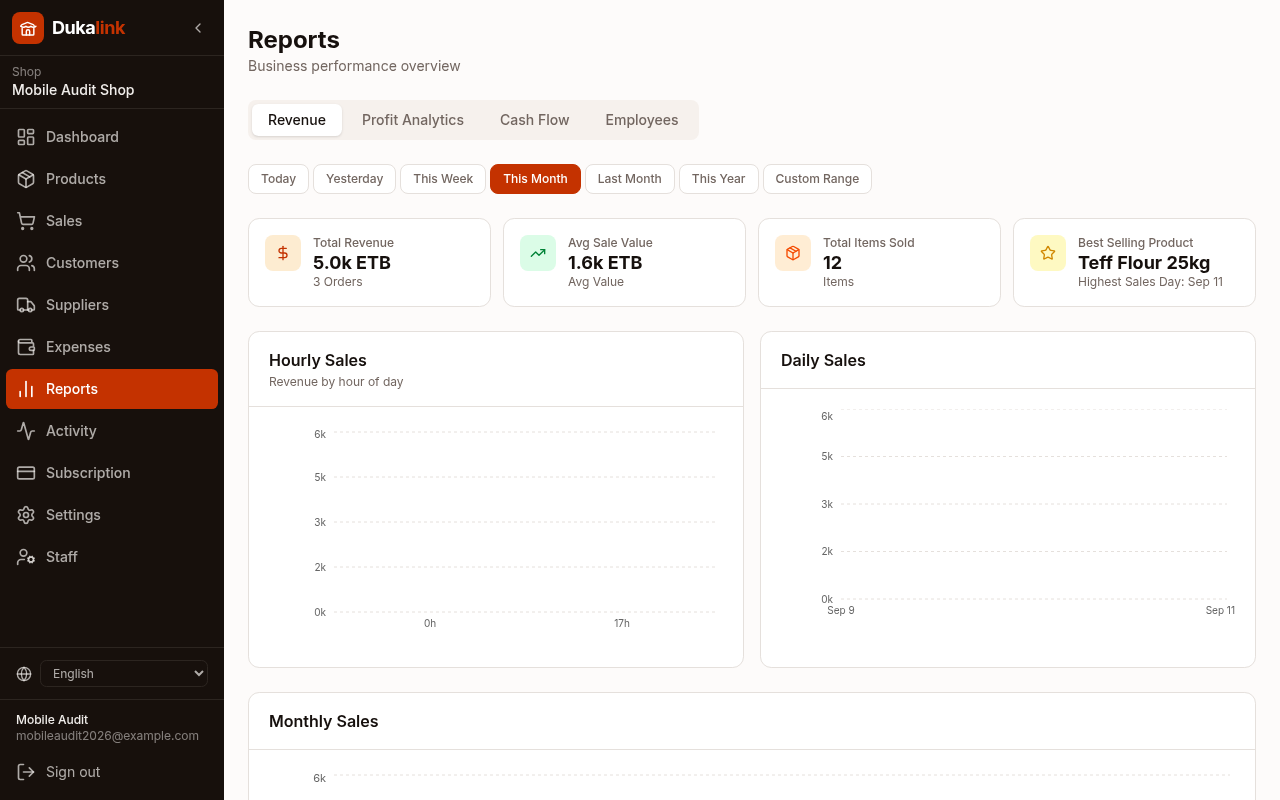
Screenshot of the Revenue report tab in Dukalink

The Revenue tab shows how much money your sales brought in over the period you choose.

  • Top cards: total revenue, average sale value, items sold, and your best selling product with its highest sales day
  • Hourly and daily charts reveal your busiest times, plus a monthly sales chart
  • Revenue split by product, by payment method (cash vs credit), and by category
  • A full product table ranking every item by quantity sold and revenue
Profit AnalyticsReports tab
dukalink.app/dashboard/reports · Profit Analytics
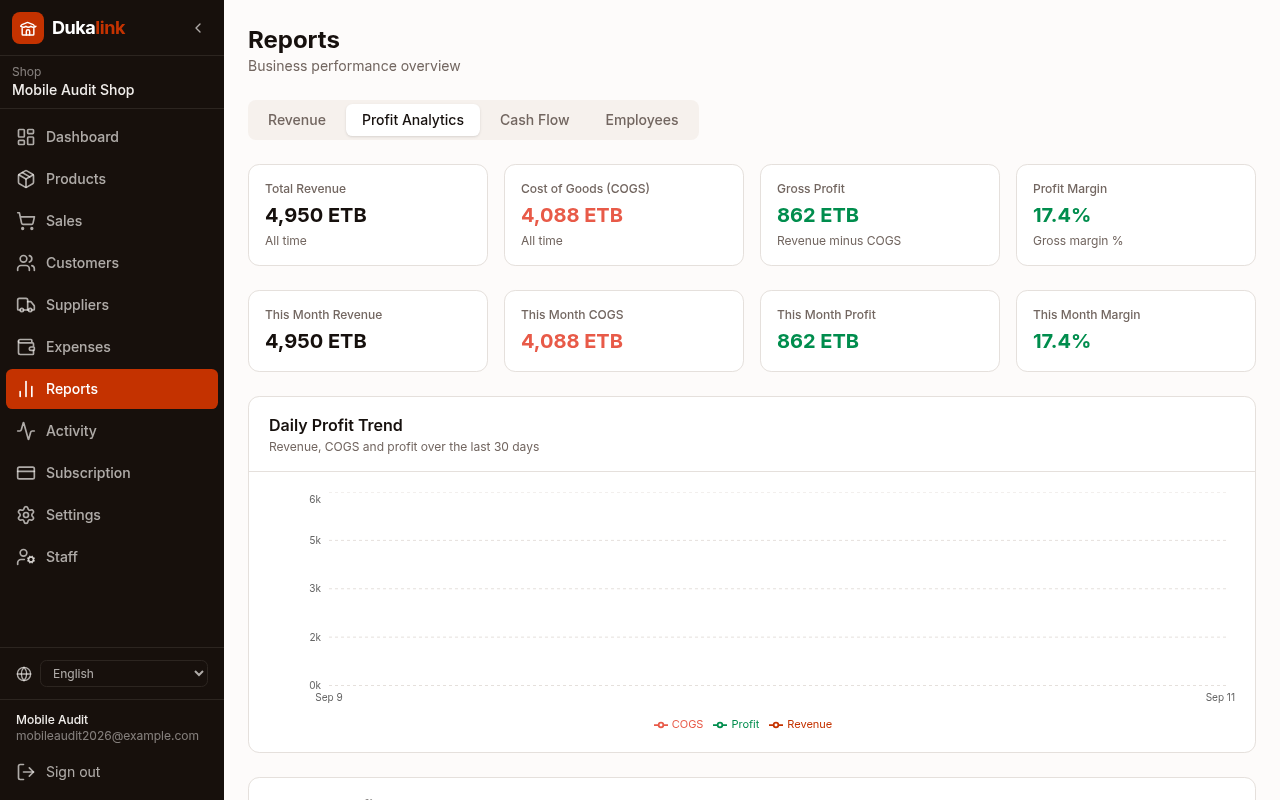
Screenshot of the Profit Analytics report tab in Dukalink

Profit Analytics shows what you actually keep after the cost of the goods you sold (COGS).

  • All-time and this-month cards for revenue, cost of goods, gross profit, and profit margin
  • Daily and monthly trends comparing revenue, COGS, and profit side by side
  • Profit by product and by category so you can see which items really make money
  • A detailed table with revenue, cost, profit, and margin for every product
Cash FlowReports tab
dukalink.app/dashboard/reports · Cash Flow
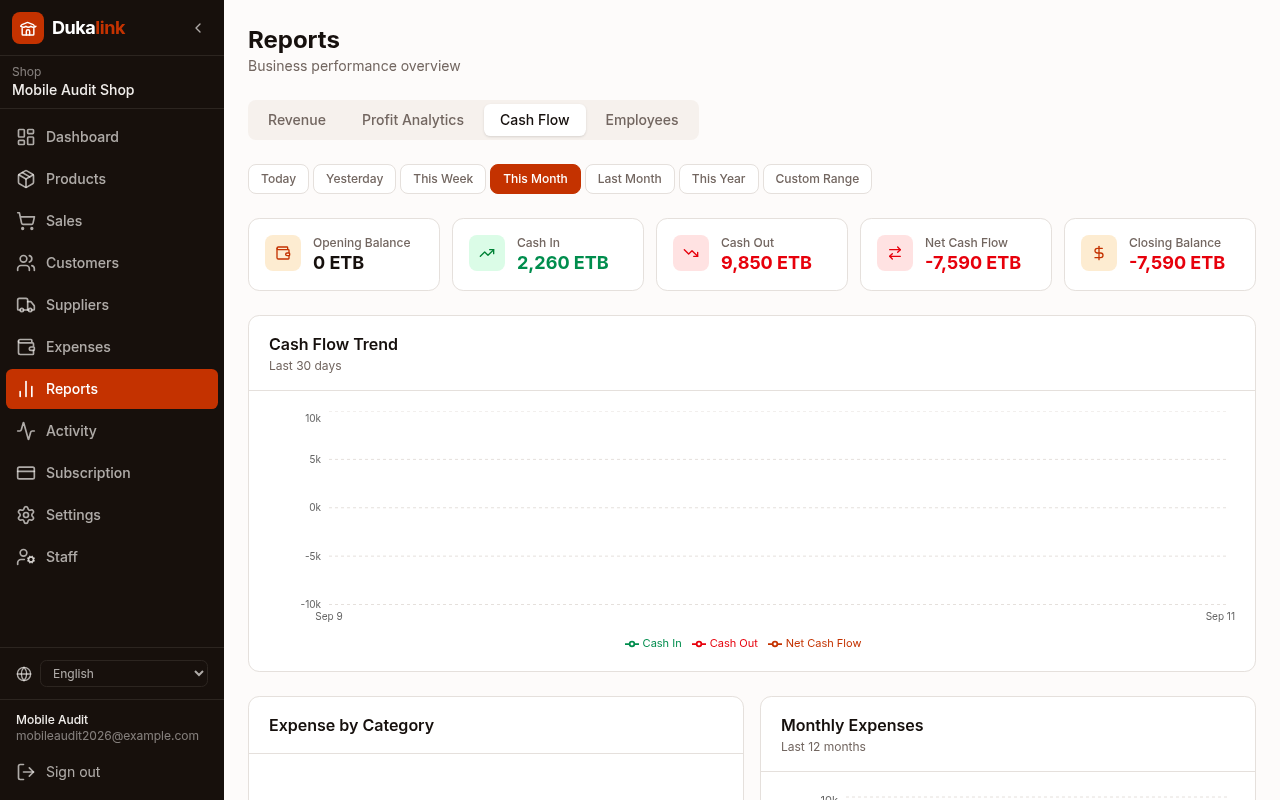
Screenshot of the Cash Flow report tab in Dukalink

Cash Flow tracks the real money moving in and out, combining sales collected with expenses paid.

  • Cards for opening balance, cash in, cash out, net cash flow, and closing balance
  • A 30-day trend line for money coming in, going out, and the net result
  • Expenses broken down by category and a monthly expenses chart
EmployeesReports tab
dukalink.app/dashboard/reports · Employees
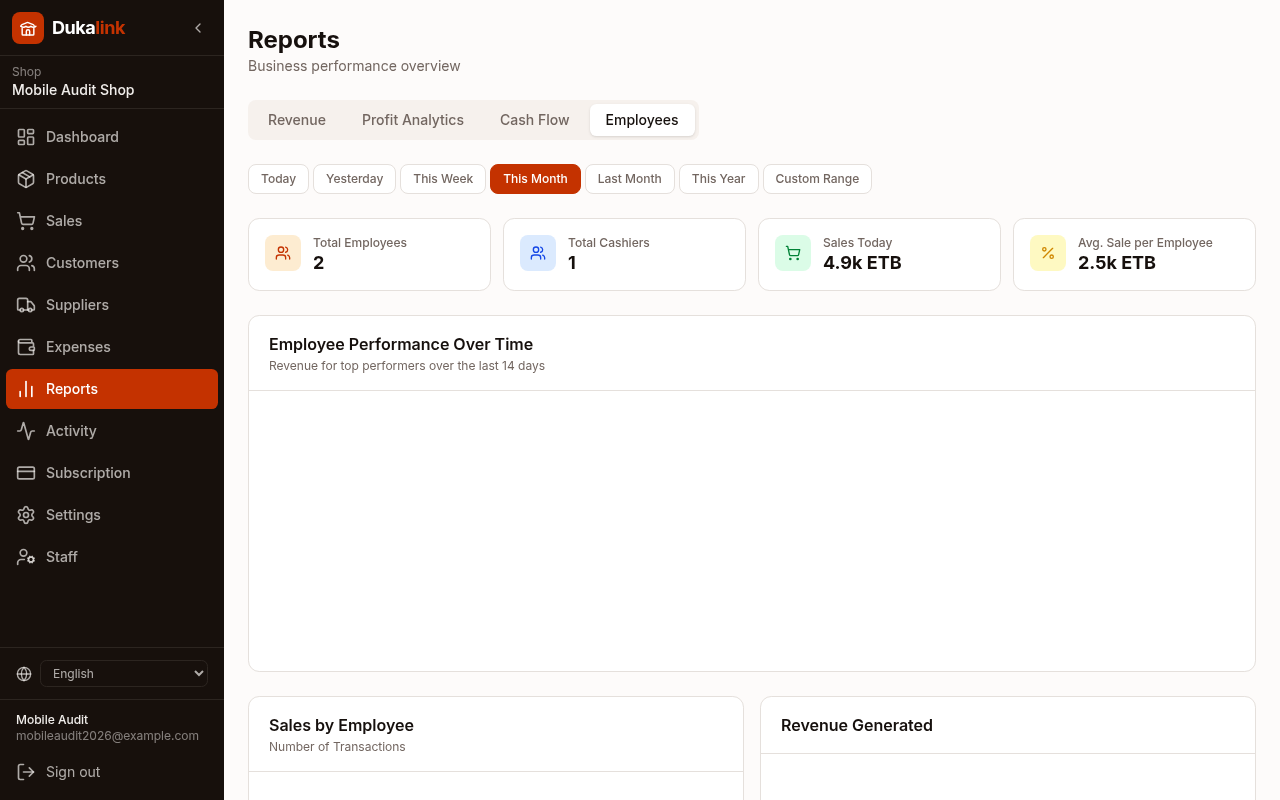
Screenshot of the Employees report tab in Dukalink

The Employees tab compares how each staff member is performing. It appears once Staff Management is switched on.

  • Cards for total employees, cashiers, sales today, and average sale per employee
  • A performance-over-time chart for your top performers
  • Sales, revenue, discounts, refunds, and average order value broken down per person
  • A ranked employee table with a clear performance rating for each member
11

Watch your dashboard

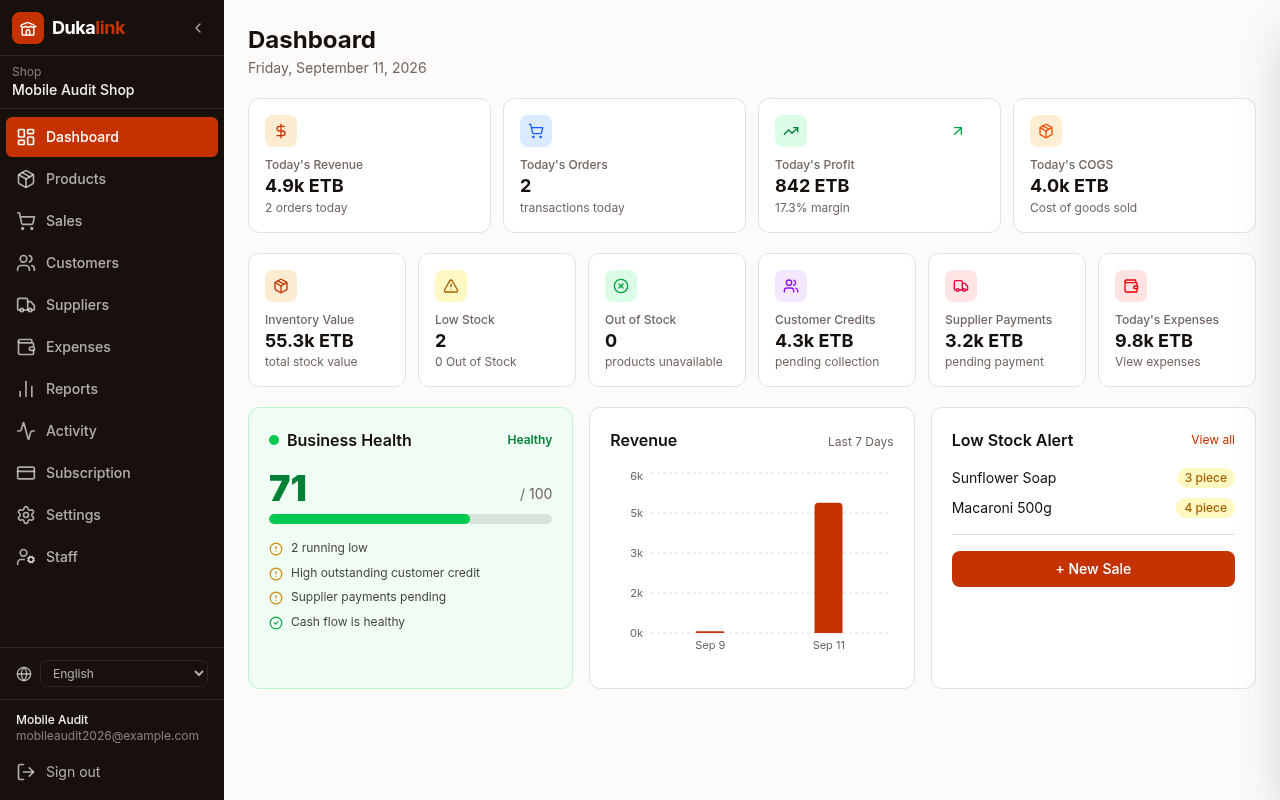
Your dashboard is the daily home base. It shows today's revenue, profit, and orders, your inventory value, low stock alerts, and a Business Health score that summarises how the shop is doing.

  • Today's revenue, profit, orders, and cost of goods at the top
  • Low stock alerts so you know what to restock
  • A Business Health score with clear, plain-language tips
dukalink.app/dashboard
Screenshot of the watch your dashboard screen in Dukalink

Ready to try it yourself?

Create your shop in a couple of minutes and start recording sales today.

Create your shop